
EasyPlex operator documentation · Android TV
The same platform.
Made for TV.
Connect a remote-first Android TV experience to your EasyPlex panel. Follow the familiar mobile setup workflow, with independent TV licensing, TV branding and signed release checks.
- 01Prepare the shared panelKeep mobile configuration intact
- 02Verify the TV purchaseTV Regular / Extended independently
- 03Brand, sign and testDPAD, playback, downloads and security
EasyPlex TV handbook
TV navigation and playback
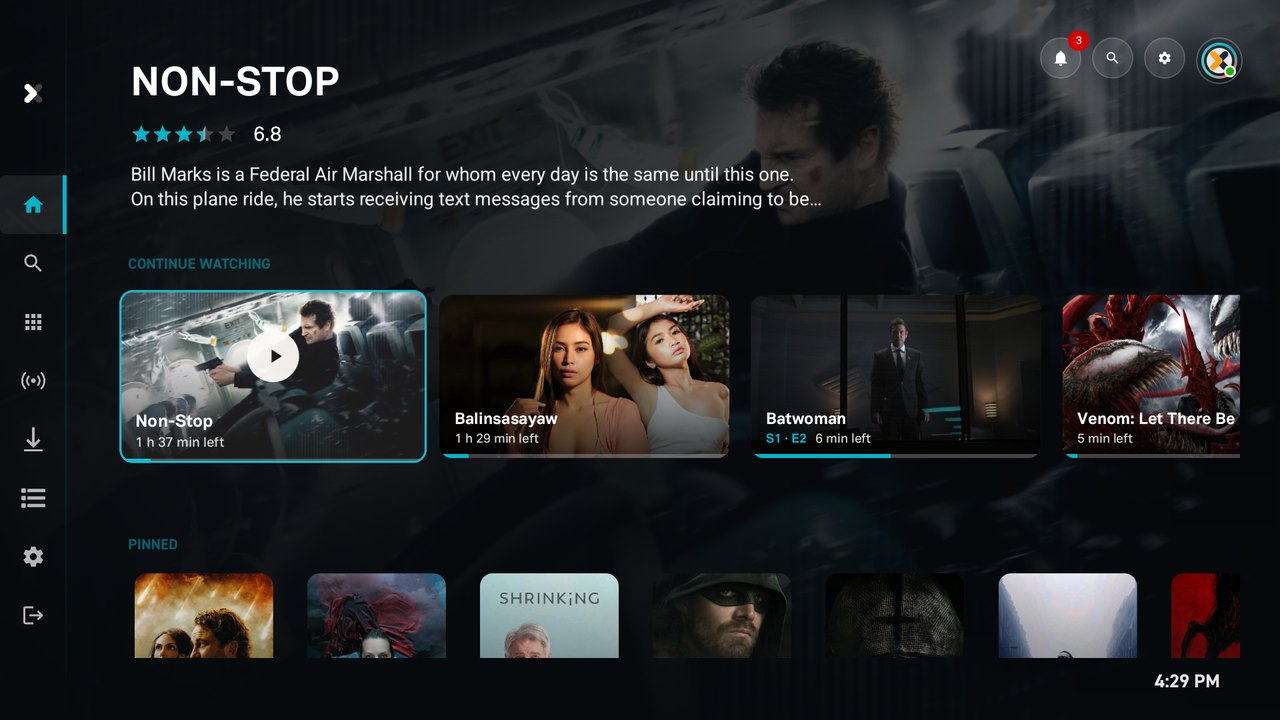
Use the remote's D-pad to move between the sidebar, hero, rails, cards and actions; OK selects and Back closes the current dialog or returns. Stream and download pickers are separate: selecting a source shows resolution progress, and quality selection appears when the source offers multiple variants.
- Movies use their full detail payload; series and anime use the selected season and episode, not the episode's local database ID as its episode number.
- The native player supports resume, audio/subtitle selection, speed, aspect ratio and remote Play/Pause. Trailer links currently hand off to an installed external application.
- Keep the TV awake and allow adequate free storage while downloading. Test a completed HLS download with the network disconnected; a successful online stream does not prove offline playback.
- Online VAST/VMAP ads follow panel configuration. Offline/local playback must not wait for an ad request.
EasyPlex TV handbook
Mobile, TV and panel compatibility
| Area | Shared behavior | TV distinction |
|---|---|---|
| Catalogue and account | Movies, series, anime, live channels, profiles, My List and watch history use the same panel | Remote-first landscape screens and phone-code sign-in |
| Licensing | Panel activation and signed runtime verification remain required | Own TV purchase and own TV Extended proof; never inherits the mobile tier |
| Security | Matching API key, signed requests, encryption, JWT/session policy, country/VPN controls | Additional configured TV package and signing fingerprint; full Play Integrity client parity remains a release gate |
| Payments and phone features | Subscription/credit access is enforced by the backend | Checkout delegates to mobile/web; phone ad placements, Reels and trailer UX are not claimed identical |
| Updates | Panel-managed releases | Separate TV version, notes, APK URL and force-update fields |
EasyPlex TV handbook
Features
- Home with a featured hero, Continue Watching, and supported rows configured in your panel (latest, trending, genres, networks, upcoming…).
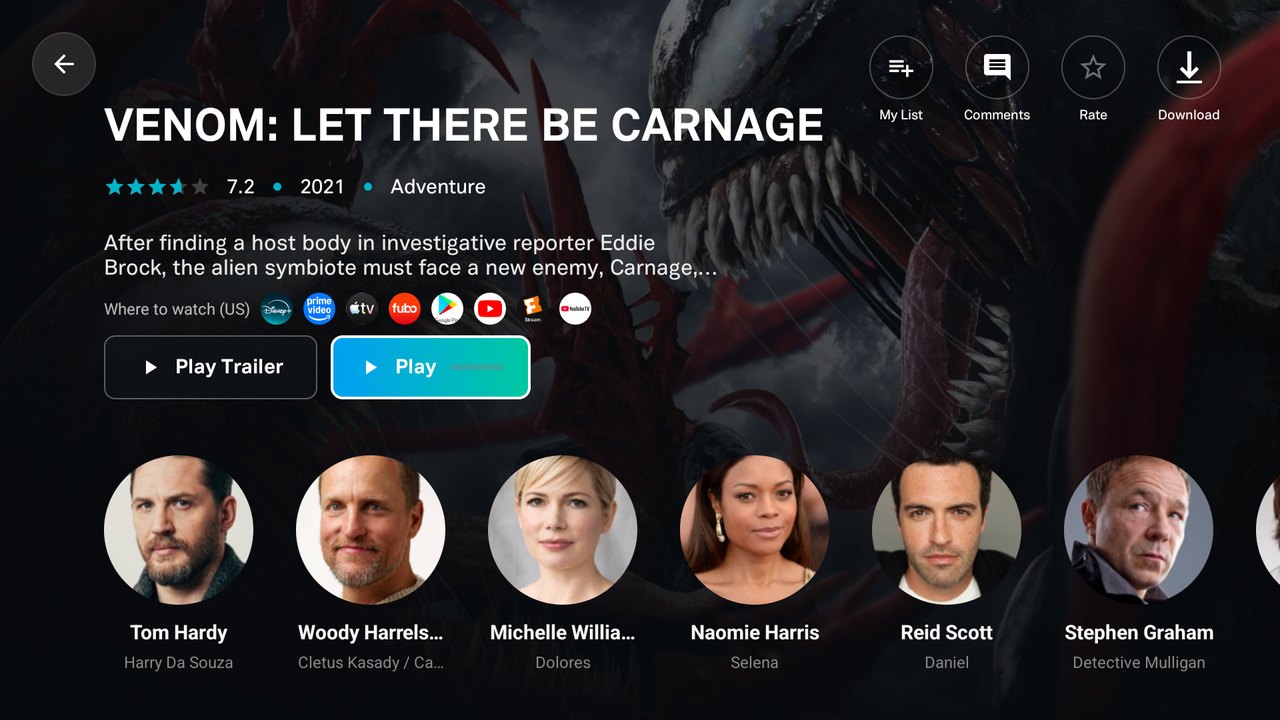
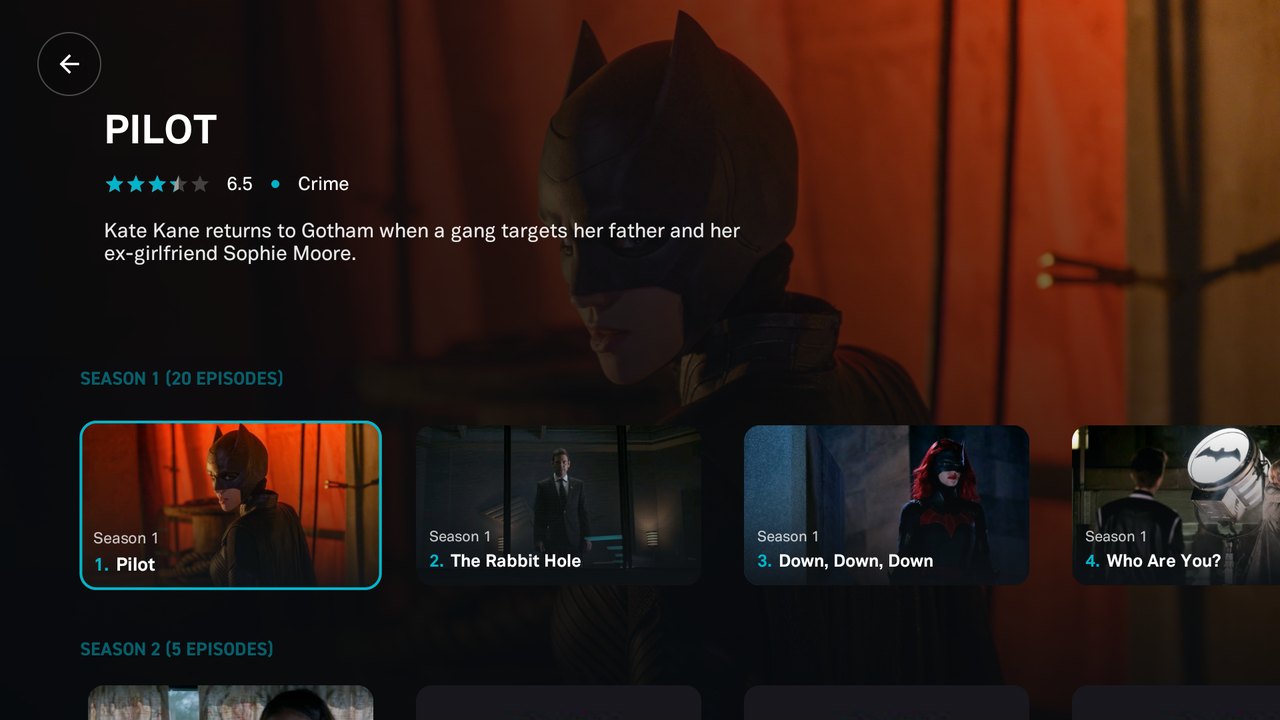
- Movies, series, anime and live TV with details, cast, “More like this”, seasons and episodes.
- Built-in player (ExoPlayer 2): HLS, DASH and MP4, resume, skip ±10 s, speed, subtitles, audio tracks, aspect ratio, next episode.
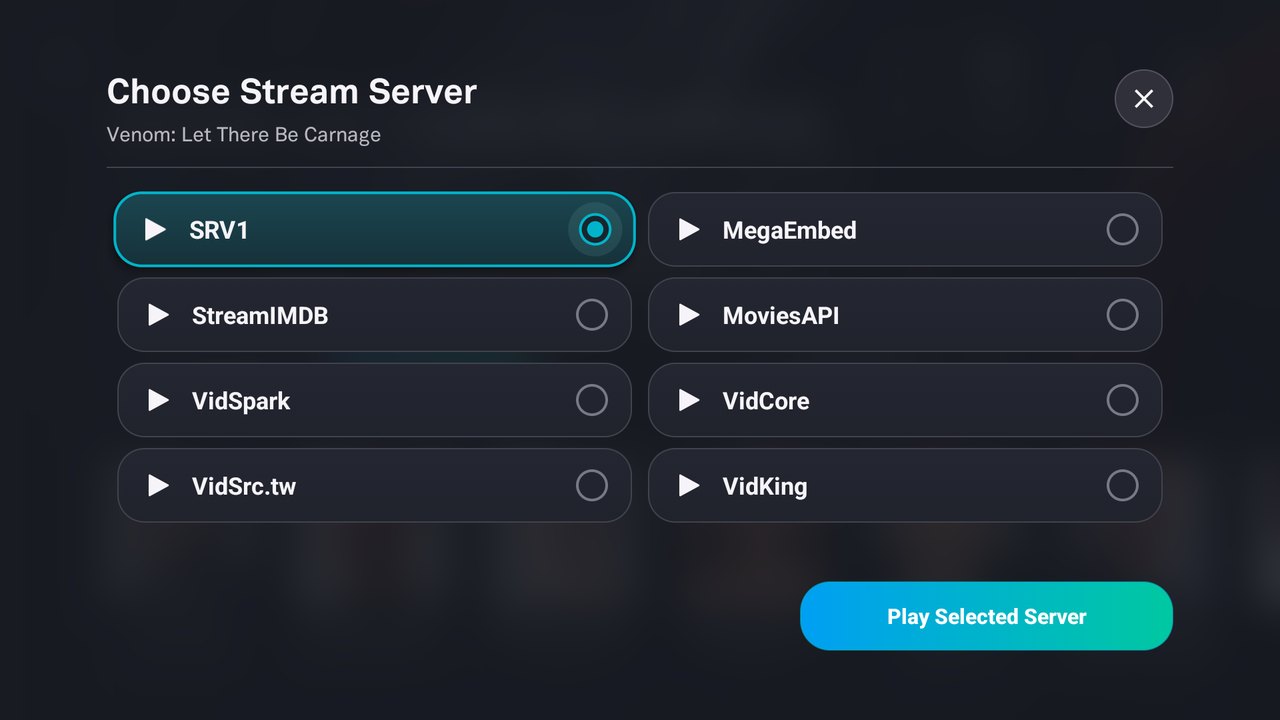
- Embed servers in a TV-friendly web player, and (Extended licence) 8 embed providers in the built-in player and as downloads.
- Sign in with the phone: scan a QR code or type the code shown in the EasyPlex mobile app. No password typing on the TV.
- Profiles, My List, watch history and ratings synced with the mobile app.
- Search, Library with type/genre filters and paging, Live channels with categories.
- Downloads for offline viewing (where the panel allows it).
- Comments, ratings, requests, notifications, coupons, subscriptions (purchases happen on mobile/web).
- In-app update screen driven by the panel, with optional forced updates and direct APK install.
- Panel features respected: maintenance, country restriction, device and session limits, VPN/safe mode and configured VAST/VMAP ads for online playback.
- Startup licence check verified with authority-signed Ed25519 proofs, independently from the mobile licence tier.
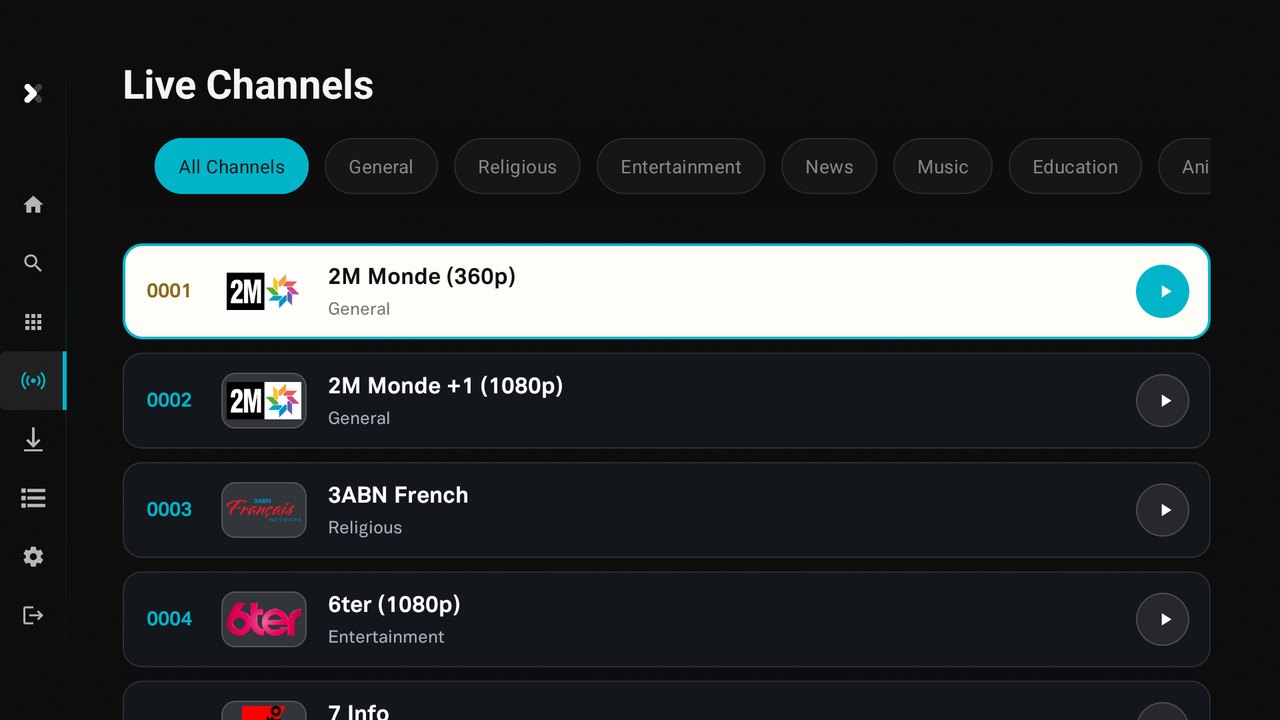
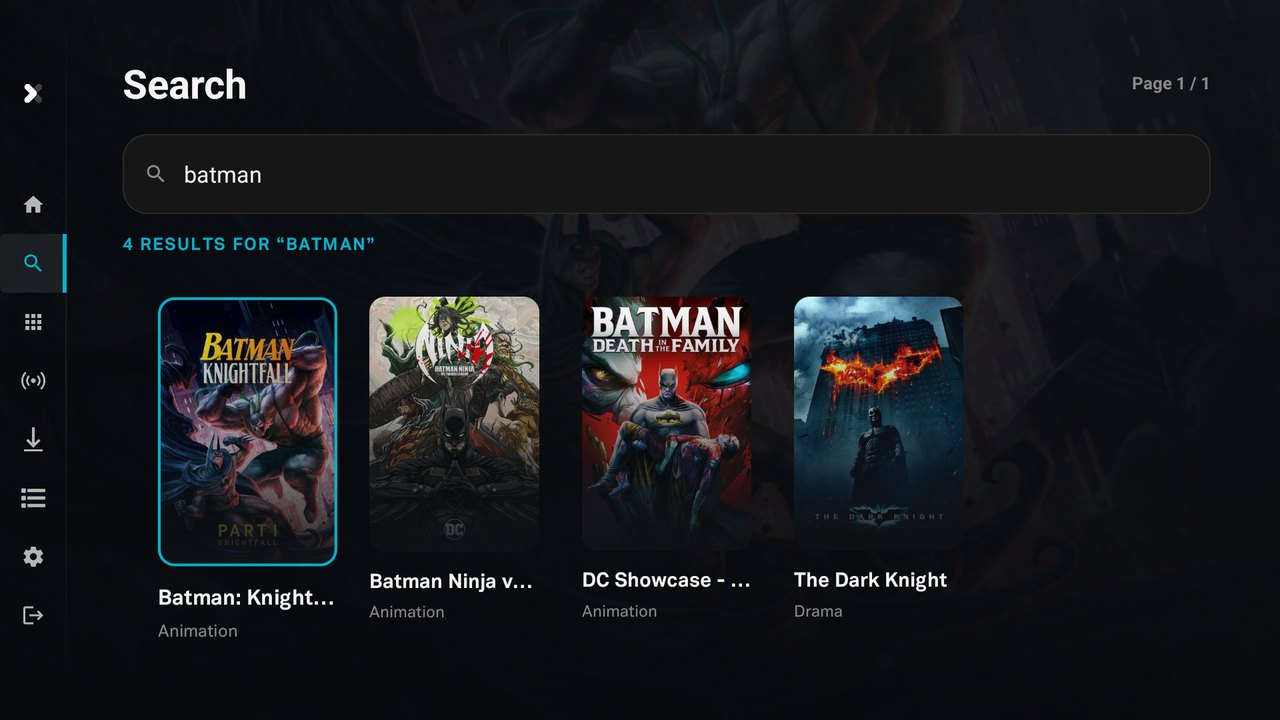
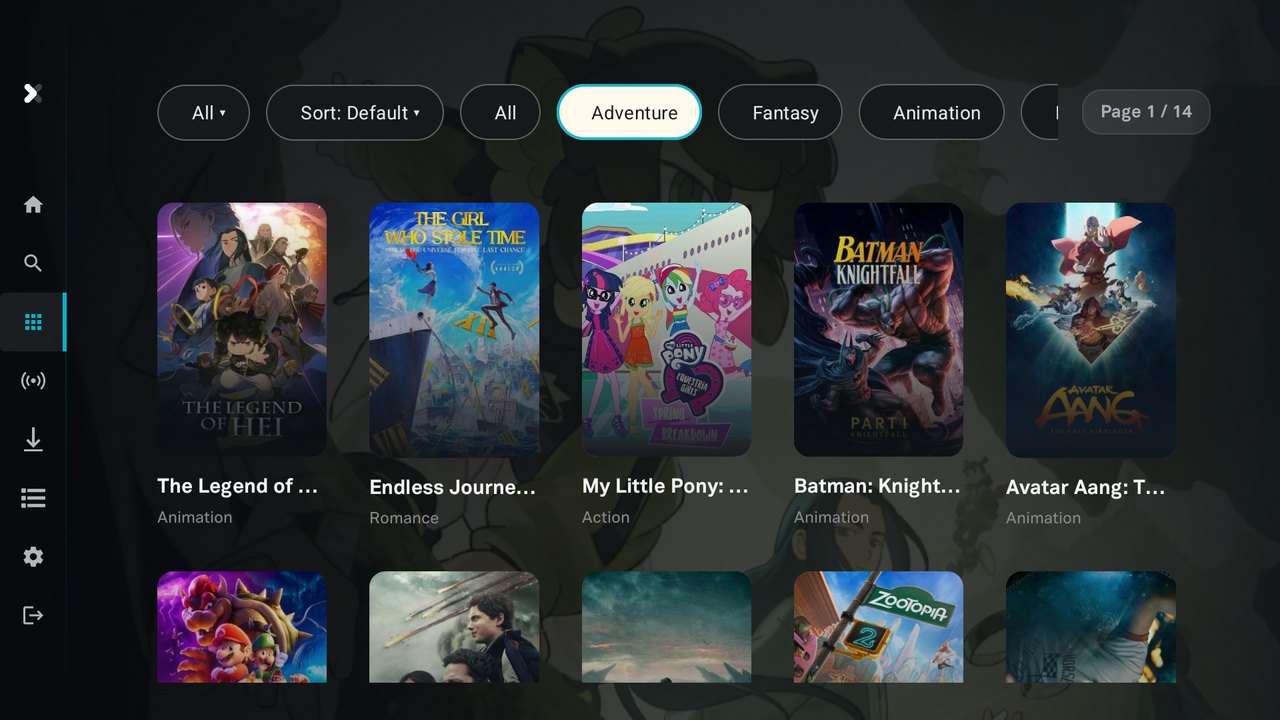
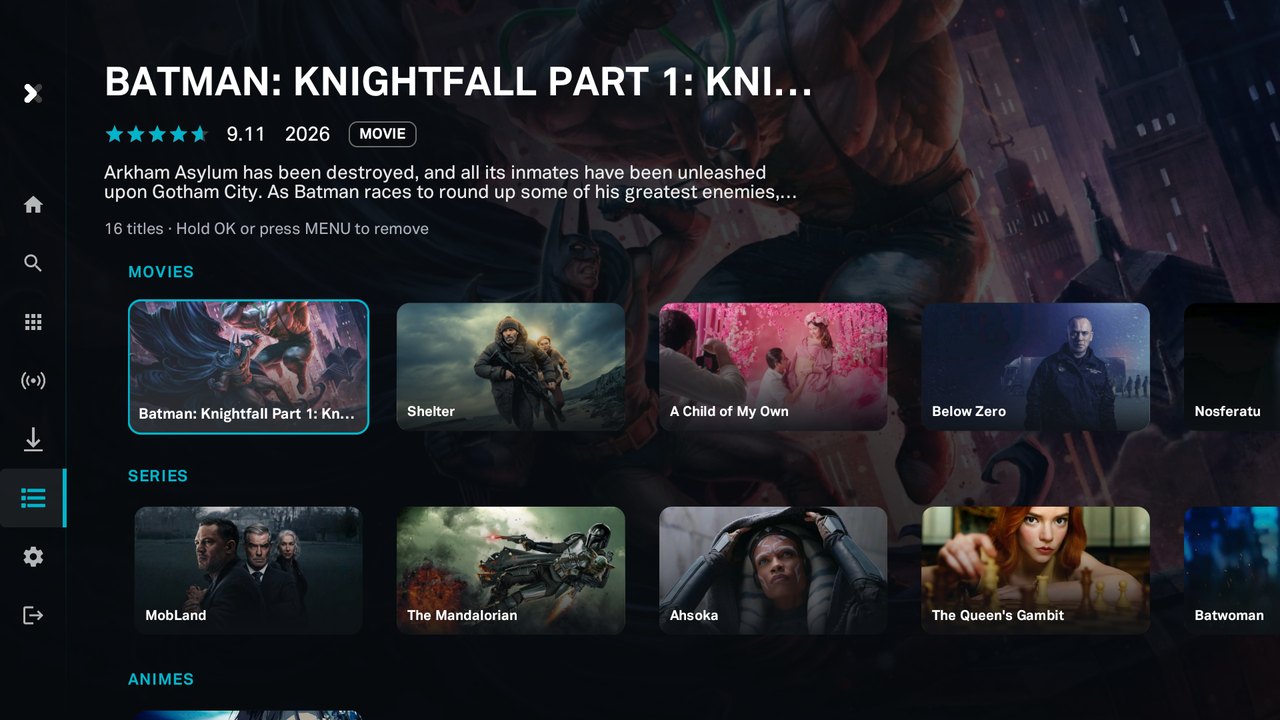
EasyPlex TV handbook
Requirements
- EasyPlex panel (sold separately), a version that includes Android TV verification (Settings › License), online at
https://your-domain.comwith a valid SSL certificate. - Your EasyPlex Android TV purchase code (from this item, not the EasyPlex panel one). A panel licence does not replace a TV licence.
- Android Studio with support for the included Android Gradle Plugin 8.13.2, its bundled JDK and Android SDK 36. The included project uses Gradle 8.13 and targets API 35; check store requirements before submission.
- An Android TV / Google TV device or emulator running Android 8.0 (API 26) or later.
- Optional: a Firebase project for push notifications.
EasyPlex TV handbook
What's in the package
| Folder | Contents |
|---|---|
Source/EasyPlexAndroidTV | The Android Studio project (Java, XML, Gradle). |
Documentation | This guide (offline copy). Online: tv.yobdev.com. |
Branding | App icon, TV launcher banner and listing artwork you can replace. |
README.txt | Short start guide. |
Not included on purpose: signing keys, your release.properties, request secrets, Firebase config and build caches.
EasyPlex TV handbook
Quick start
- In your EasyPlex panel: save the EasyPlex Android TV purchase code and select Verify with Envato (details).
- Open
Source/EasyPlexAndroidTVin Android Studio and let Gradle sync. - Copy
release.properties.exampletorelease.propertiesand fill in your panel URL, API key, TV purchase code and signing key (details). - Copy the panel's request secrets into
mobile-security.properties(details). - Replace
app/google-services.jsonwith your Firebase file for your package name. - Build:
./gradlew :app:assembleRelease, install the APK on your TV and sign in with the mobile app.
EasyPlex TV handbook
Purchase code & activation
EasyPlex Android TV is activated the same way as the EasyPlex mobile app: your build carries a purchase code, and at every start the
TV asks your panel (api/system/node) to confirm it. The panel answers with a signed licence attestation that the TV
checks before it opens. The Android TV item has its own purchase code, which your panel verifies once with Envato.
1. Verify the purchase in your panel
- Sign in to your EasyPlex admin panel and open Settings › License.
- Enter your EasyPlex Android TV purchase code in Android TV purchase code. Set Android TV package name to the TV build's
APPLICATION_ID, then save. Keep the existing mobile package configured separately. - Select Verify with Envato. Envato's sign-in opens: sign in with the Envato account that bought EasyPlex Android TV and allow EasyPlex Android TV to verify your purchases.
- Envato returns to
tv.yobdev.com, which asks you to confirm your panel's address and hands the result back to your panel. Nothing is stored on tv.yobdev.com; the sign-in is used once and not saved. - The panel shows Verified and the TV licence tier. This confirms the Envato purchase check, not the separate runtime entitlement. Changing the purchase code clears its receipt. A newly signed runtime proof also updates a changed Regular/Extended tier.
2. Put the same code in the build
28462799 for TV testing. It still requires a real verified purchase and preserves that purchase's actual Regular/Extended type. It does not certify an independent TV purchase or make a Regular purchase Extended. Production must use the approved TV item ID.Set PURCHASE_KEY in release.properties to the same EasyPlex Android TV purchase code. A release build refuses to compile without it.
At startup the TV shows “This Android TV app is not activated yet…” until the panel has verified the code, and “Unable to start EasyPlex from this server” if the code doesn't match the panel or the panel's own licence isn't valid.
EasyPlex TV handbook
Configure the build (release.properties)
Copy release.properties.example to release.properties in the project folder. This file holds secrets and is ignored by git: never commit or share it.
| Setting | What to enter |
|---|---|
APPLICATION_ID | Your package name, e.g. com.yourbrand.tv. Default com.easyplex.tv. Your Firebase file must contain it. |
SERVER_BASE_URL | Your panel's API address ending with /api/, e.g. https://your-domain.com/api/. Must be HTTPS with a real domain. |
MOBILE_API_KEY | Your panel's API key (the same value your EasyPlex mobile app uses). |
PURCHASE_KEY | Your EasyPlex Android TV purchase code (verified in the panel). |
RELEASE_STORE_FILE, RELEASE_STORE_PASSWORD, RELEASE_KEY_ALIAS, RELEASE_KEY_PASSWORD | Your signing key (next section). Without them the APK is built unsigned. |
A release build stops with “Release build is not configured” and the list of what's missing or wrong (for example an http:// address).
EasyPlex TV handbook
Request signing secrets (mobile-security.properties)
The panel signs and encrypts API traffic; the TV app needs the same secrets as the panel. Either run the sync script against your panel folder:
php scripts/sync-mobile-security.php /path/to/your/laravel/panelor set LARAVEL_PROJECT_PATH=/path/to/panel in local.properties and the build runs it for you. This writes
mobile-security.properties next to release.properties. Keep it private.
EasyPlex TV handbook
Signing key
Create a keystore once and keep it safe. Every future update must be signed with the same key.
keytool -genkeypair -keystore keystore/easyplex-tv.jks -alias easyplex-tv -keyalg RSA -keysize 2048 -validity 10000Put its path, passwords and alias in release.properties.
keytool -list -v -keystore keystore/easyplex-tv.jks -alias easyplex-tv.EasyPlex TV handbook
Package name & branding
| What | Where |
|---|---|
| Package name | APPLICATION_ID in release.properties (set it before your first release). |
| App name | app_name in app/src/main/res/values/strings.xml. |
| App icon | app/src/main/res/drawable/mainlogo.png and mipmap-*/ic_launcher.png. |
| TV launcher banner (320×180) | app/src/main/res/drawable/tv_banner.png. A template is in Branding/. |
| Colours | main_color, startColor, centerColor, endColor in res/values/colors.xml. |
| About link | The yobex string in res/values*/strings.xml; set it to your own website. |
| Firebase (notifications) | Replace app/google-services.json with the file from your Firebase project for your package name. |
Toolbar logo, Home rows, colours of some elements and most texts shown to viewers come from your panel.
EasyPlex TV handbook
Build the APK
./gradlew :app:assembleReleaseThe APK is written to app/build/outputs/apk/release/app-release.apk (signed) or app-release-unsigned.apk.
Before each release raise versionCode and versionName in app/build.gradle.
EasyPlex TV handbook
Install on a TV
- ADB: enable Developer options and Network debugging on the TV, then
adb connect <tv-ip>:5555andadb install -r app-release.apk. - USB / download: copy the APK and open it with a file manager; the TV asks to allow installs from that app.
- Panel update link: upload the APK to your server and set it as the TV update link (TV app updates).
EasyPlex TV handbook
Signing in on the TV
The TV has no password login. Viewers open the EasyPlex mobile app at Settings › Android TV Login and either scan the QR code on the TV or type the 8-character code shown on the phone into the TV. Viewers can also continue as a guest if your panel allows it.
EasyPlex TV handbook
Panel settings for TV
- Settings › License: Android TV purchase code and Verify with Envato.
- Settings › Updates › Android TV app: TV version, title, release notes, update link, forced update.
- Streaming: forced embed (vidsrc), injected embed servers, default provider and provider aliases.
- Downloads Management: enable downloads and provider downloads, select the download providers, choose forced versus injected provider behavior, and retain per-title/per-episode download permissions. These switches cannot override a disabled content download flag or a missing TV Extended entitlement.
- Security: country restriction, VPN detection, safe mode, device limit, session limits, access password.
- Home: which rows show and their order (the TV follows the panel).
EasyPlex TV handbook
Embed providers (Extended licence)
With an Extended licence of EasyPlex Android TV, your panel can turn on two extra options (same as the mobile app):
- Providers in the built-in player: VidSrc, MegaEmbed, StreamIMDB, MoviesAPI, VidSpark, VidCore, VidSrc.tw and VidKing can be selected for direct-stream resolution and built-in playback. Availability depends on the provider, title and network.
- Provider downloads: selected providers offered as download sources. HLS qualities are shown when the returned manifest provides them; unavailable sources fail clearly.
The TV requires a separate TV Extended entitlement signed by the licensing authority and bound to its purchase code, package, installation, domain and fresh startup challenge. A mobile/panel Extended licence alone cannot unlock these features. Missing or invalid TV proof means they remain disabled. Ordinary web embeds and provider-list selection do not require Extended.
| Panel licence | TV licence | TV native provider extraction / provider downloads |
|---|---|---|
| Regular | Regular | Disabled |
| Extended | Regular | Disabled |
| Regular | Extended | Enabled only with valid TV-specific proof and the relevant panel switches |
| Extended | Extended | Same TV-specific proof required |
EasyPlex TV handbook
TV app updates
In Settings › Updates › Android TV app set the latest TV version, a title, release notes and an update link. When a TV's
version is lower it shows an update screen at start. A direct link to an .apk is downloaded and installed by the app (the TV may
ask to allow installs from EasyPlex); any other link is opened. Force update hides “Not now”. Leave the version empty to show no update screen.
These fields are separate from the mobile app's.
EasyPlex TV handbook
Google Play
Publishing on Google Play for Android TV needs an app bundle, the TV banner, TV screenshots and Google's TV quality checklist (D-pad navigation, no touch-only screens, landscape). Content you stream must be licensed for your audience; Google rejects apps that offer unlicensed content.
EasyPlex TV handbook
Project structure
| Path | What's there |
|---|---|
ui/splash | Startup: settings, licence check, update and access gates. |
ui/fragment, ui/base | Home and the main TV shell (side menu, toolbar). |
ui/moviedetails, ui/seriedetails, ui/animes | Details pages, seasons and episodes. |
ui/player | Built-in player and the embed (web) player. |
ui/servers | Server and download pickers, provider resolution. |
ui/login, ui/users | Phone sign-in (QR/code) and profiles. |
ui/settings, ui/update | Settings screen and the TV update screen. |
security | Licence attestation verifier and build-time secrets. |
data/remote | API client (Retrofit) and interceptors. |
EasyPlex TV handbook
Troubleshooting
| Problem | Fix |
|---|---|
| “This Android TV app is not activated yet” | Verify the EasyPlex Android TV purchase code in the panel (Purchase code & activation). |
| “Unable to start EasyPlex from this server” | PURCHASE_KEY doesn't match the code saved in the panel, the panel isn't activated, or SERVER_BASE_URL is another domain. |
| “Release build is not configured” | Fix the listed settings in release.properties. |
| Build: “No matching client found for package name” | Your google-services.json doesn't contain APPLICATION_ID. Add the package in Firebase and download the file again. |
| Nothing loads, endless spinner | SERVER_BASE_URL is wrong or missing /api/, or the SSL certificate is invalid. |
| Authentication failed / invalid APK signature | Add your TV signing key's SHA-256 to the panel's allowed APK signatures. |
| “Maximum number of active sessions” | Raise the session limit in the panel or sign out another device. |
| Embed server “can't be reached” | That embed provider's address no longer works; change it in the panel. |
| Verify with Envato: “not found among the purchases” | Sign in with the Envato account that bought EasyPlex Android TV, and check you entered the TV item's code. |
EasyPlex TV handbook
Changelog
2.0.0 · first CodeCanyon release
- Separate Android TV purchase code, verified in the panel with Envato; startup licence check like the mobile app.
- New phone sign-in screen (QR + code), redesigned Settings, Library, Search and Live.
- Embed providers in the built-in player and as downloads (Extended licence).
- Panel-driven TV update screen with direct APK install; country restriction screen.
- Remote play/pause keys, focus fixes on every screen, Live channel numbering, many smaller fixes.
- Build settings in
release.propertieswith an HTTPS release check; configurable package name.
EasyPlex TV handbook
Support & credits
Support: through the item's Support tab on CodeCanyon. Please include your Android TV device, the app version and what you see on screen.
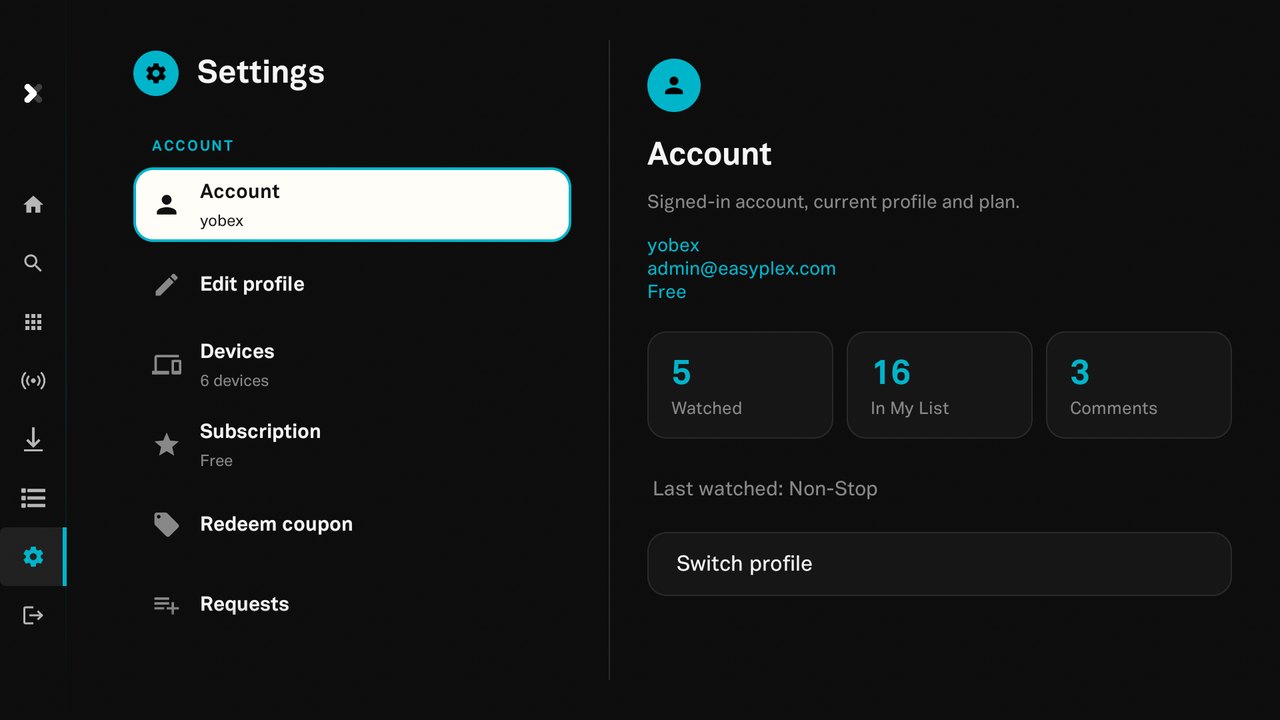
Built with AndroidX Leanback, ExoPlayer 2, Retrofit/OkHttp, RxJava, Dagger, Glide, Gson and other open-source libraries under their own licences (Apache 2.0 unless noted in the project). Screens in this guide show the app with demo content.
EasyPlex TV handbook